
Moving Appointments
To move an appointment in the Session or Day view.
- Right click on the appointment(s) you want to move.
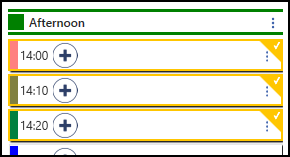
- If you are moving the appointment(s) to slots on the same day you can use drag and drop.
Simply drag the appointments to free slots. - If the appointment is being moved to another day, then the clipboard is needed.
The toolbar at the top of the screen activates upon right click.
- Select the Move
 button.
 - Select the Clipboard
 button, the Marked for Move section displays moved patients.
 - Select your appointment, drag and drop to a new slot.
All the associated comments are automatically moved to the new date and time.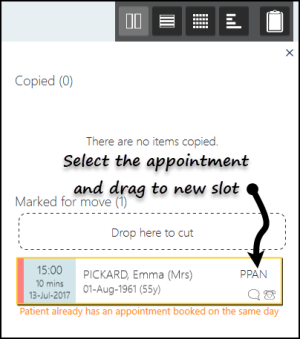
- A booking confirmation message displays.

Note: Using drag and drop take across the slot type, duration and any appointment comments.

